


Today I am going to show you how to install WhatsApp on PC as this is one of most popular searches on search engines. You can use WhatsApp on your PC, can chat with your friends and can do everything you do in your mobile phone. WhatsApp Messenger is the most popular app in Android market. It has more than 80 million users and hasn't shown any signs of decline in more and more people signing up one.
Do check => Top 5 Android Phones Below Rs 10000
These days I see many people wanting to use Whatsapp on PC. It could be due to many reasons. Whatever may the reason, I have decided to write a detailed article on this topic and make it easy for you. Some might have already come across the solution and some others might haven't. There are many softwares available for running android apps on PC but the best one is Bluestacks. Today I will show you how to install WhatsApp on your PC or Laptop using Blustacks. Follow my steps carefully, then you will be able use WhatsApp on your PC.
Note : Bluestacks supports only on systems which have Graphic card.

2. After installing then open Bluestacks. Here you will see a small app search icon on top right corner.
3. Click on that search icon and type WhatsApp in search box and download it.
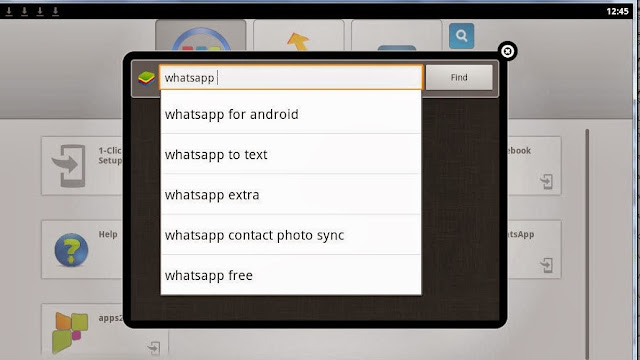
Note : If you are not seeing WhatsApp in search then click on "Help" icon. Then you will be redirected to internet and in the URL field paste http://www.whatsapp.com/ and download it.
4. After installing WhatsApp, you will be asked to enter your phone number and enter your number for which you want to use WhatsApp.
5. Then verify your phone number using SMS or call.
6. After verifying your number then open contacts and enter your friends contact numbers who are using WhatsApp and then you can chat with them and voice messages and much more.
This is how to install and use WhatsApp on PC or Laptop. If you are facing any problems, please let me know. If you want more useful tips and tricks, subscribe to our newsletter which you can see below.
Also see : How To Use Android Phone As Webcam
Do check => Top 5 Android Phones Below Rs 10000
These days I see many people wanting to use Whatsapp on PC. It could be due to many reasons. Whatever may the reason, I have decided to write a detailed article on this topic and make it easy for you. Some might have already come across the solution and some others might haven't. There are many softwares available for running android apps on PC but the best one is Bluestacks. Today I will show you how to install WhatsApp on your PC or Laptop using Blustacks. Follow my steps carefully, then you will be able use WhatsApp on your PC.
Note : Bluestacks supports only on systems which have Graphic card.
How To Install WhatsApp on PC or Laptop
1. Firstly, download and install Bluestacks software on your PC or Laptop. Download Here2. After installing then open Bluestacks. Here you will see a small app search icon on top right corner.
3. Click on that search icon and type WhatsApp in search box and download it.

4. After installing WhatsApp, you will be asked to enter your phone number and enter your number for which you want to use WhatsApp.
5. Then verify your phone number using SMS or call.
6. After verifying your number then open contacts and enter your friends contact numbers who are using WhatsApp and then you can chat with them and voice messages and much more.
This is how to install and use WhatsApp on PC or Laptop. If you are facing any problems, please let me know. If you want more useful tips and tricks, subscribe to our newsletter which you can see below.
Also see : How To Use Android Phone As Webcam
Subscribe Today And Discover All Tips And Tricks !
Note : Don't forget to click the confirmation link in youe email inbox!


thqu
ReplyDelete